How to Mix Minecraft Texture Packs
Take swords, armor, blocks and more from different packs and combine them into one.
5 min read · Updated 2026-11-14
Most texture packs are great at some things. One has the cleanest swords, another has the best blocks, a third has the nicest sky. Minecraft only lets one pack win for each texture, so stacking packs in the game rarely gives you exactly the mix you want. PackMixer solves this by building a brand-new pack from the parts you choose.
1. Add your packs
- Open PackMixer.
- Drag two or more texture pack
.zipfiles onto the page, or click Choose .zip files. Unzipped pack folders work too: use Choose folder or drag the folder in. - Each pack gets a letter and a color (A, B, C…). You can add up to 10 packs.
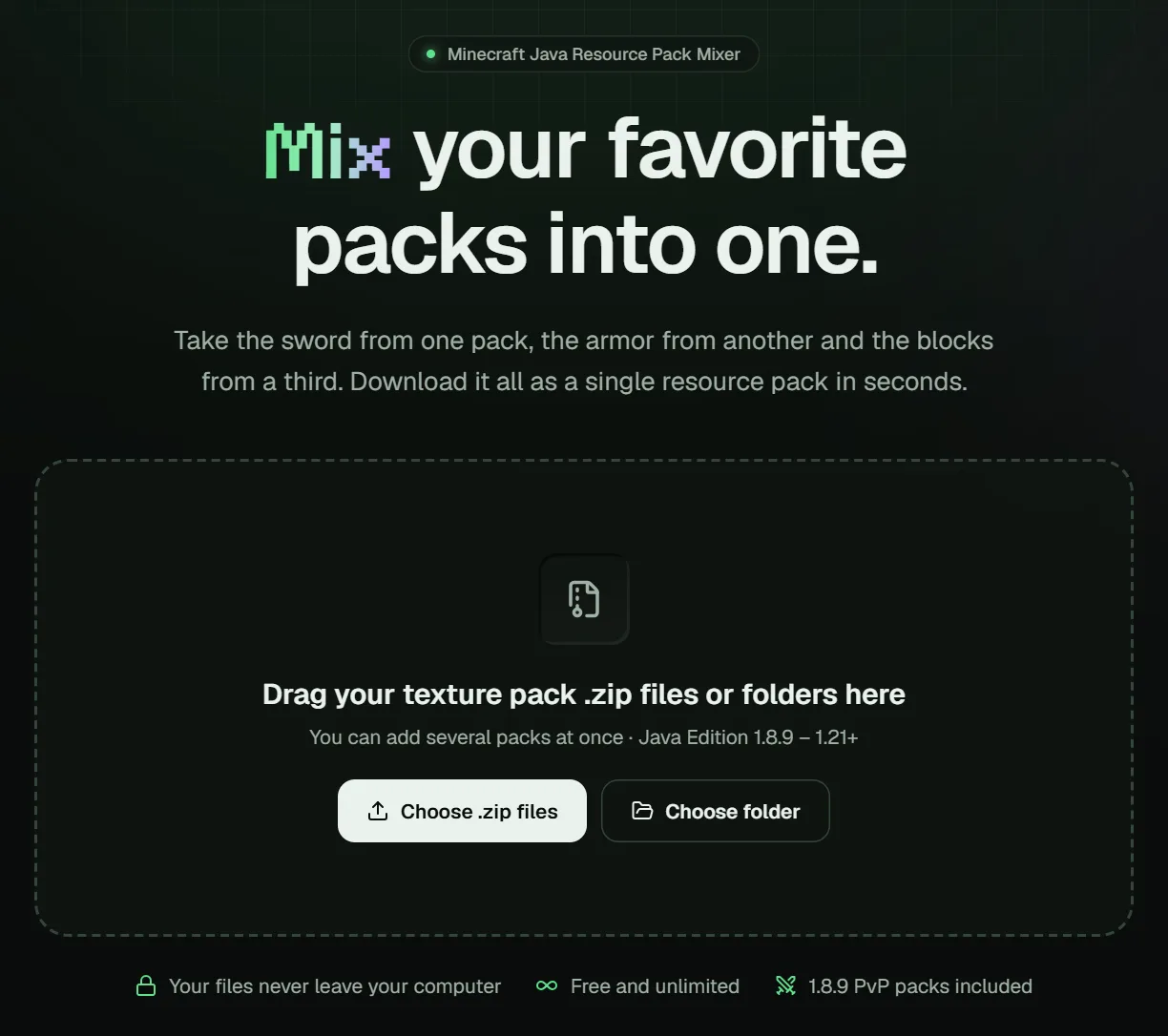
PackMixer reads every file and sorts it into 18 categories such as Swords, Tools, Armor, Blocks, Ores, Interface & HUD, Sky and Sounds.
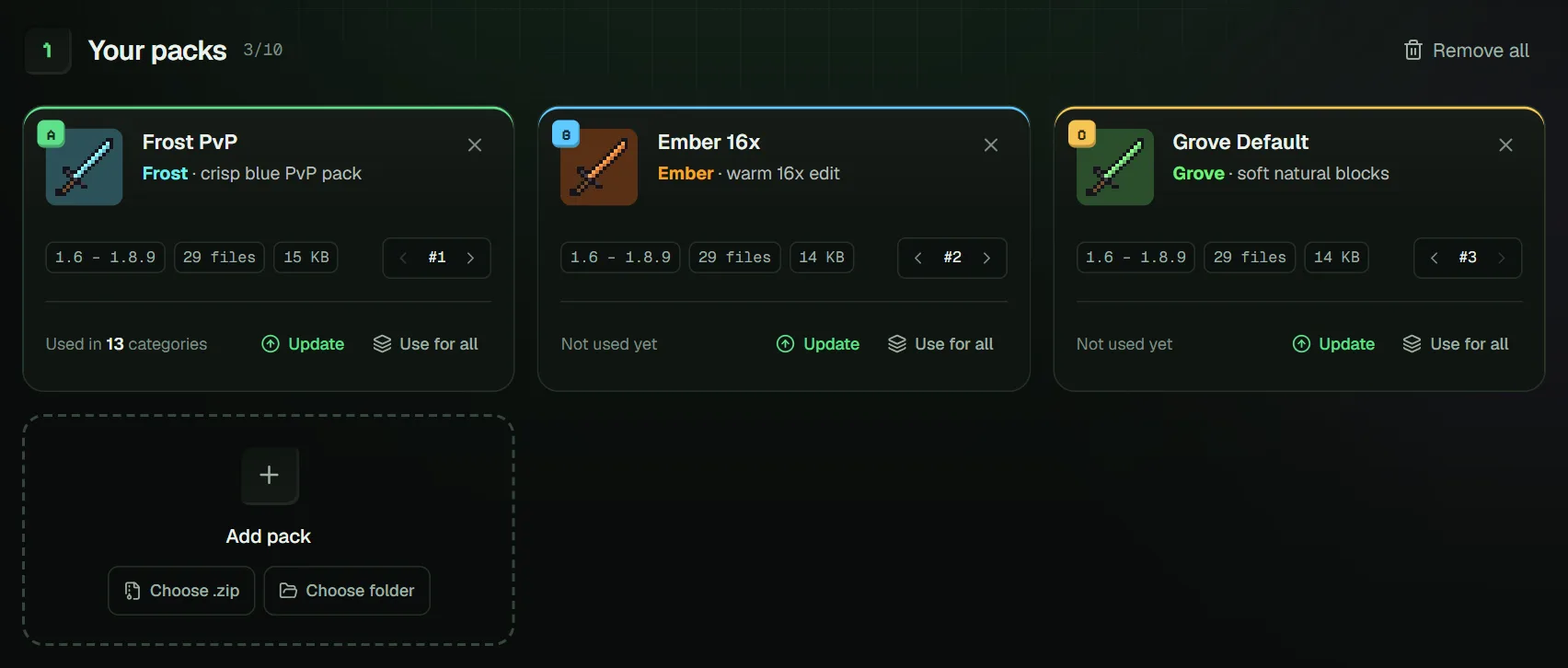
2. Pick a pack for each category
In Pick the parts, every category shows a small preview from each pack. Click the one you want. Choose Vanilla to leave a category out and keep the original Minecraft textures.
The live preview at the top updates as you click, showing blocks, the HUD, the hotbar and the sword in your hand.
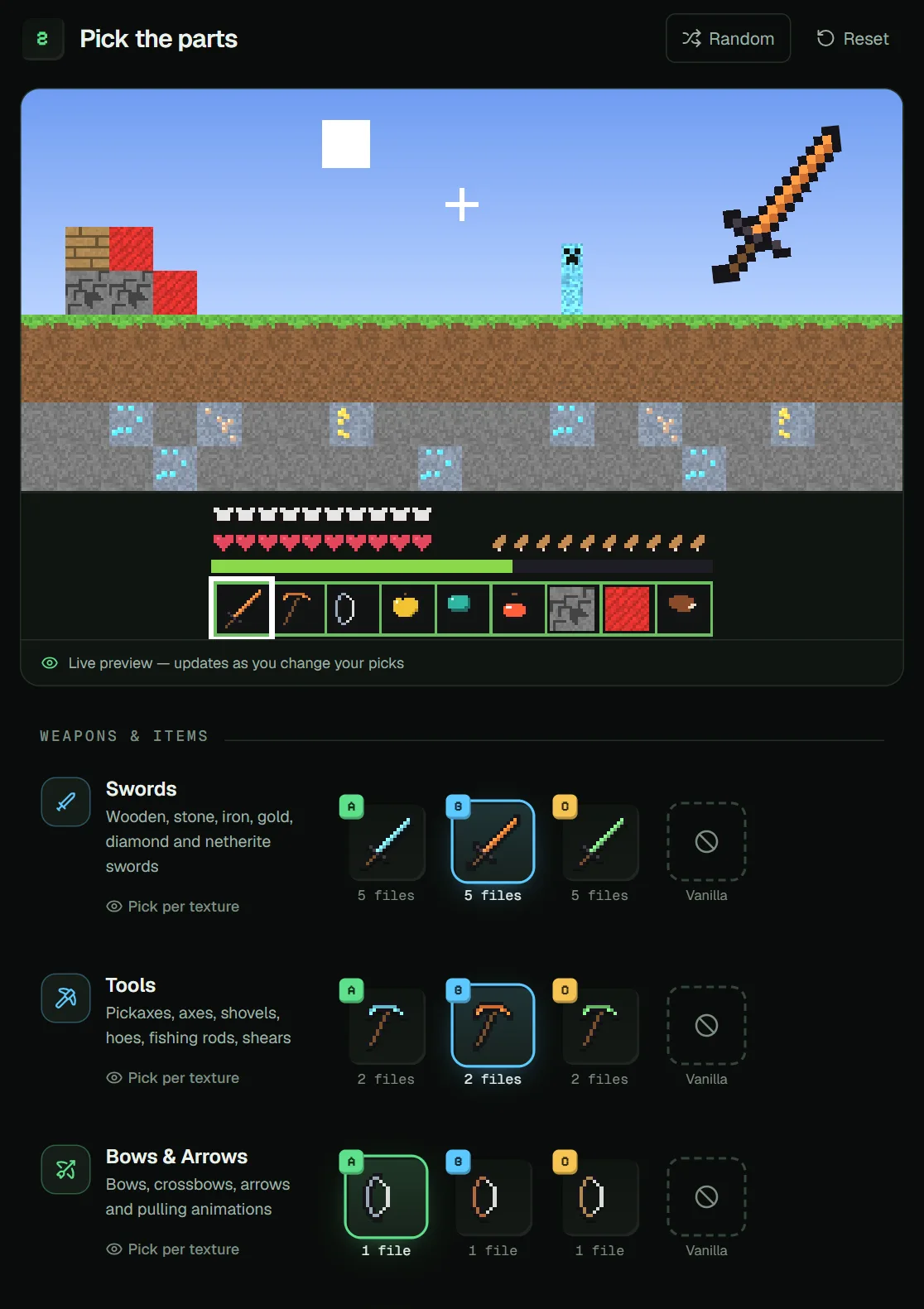
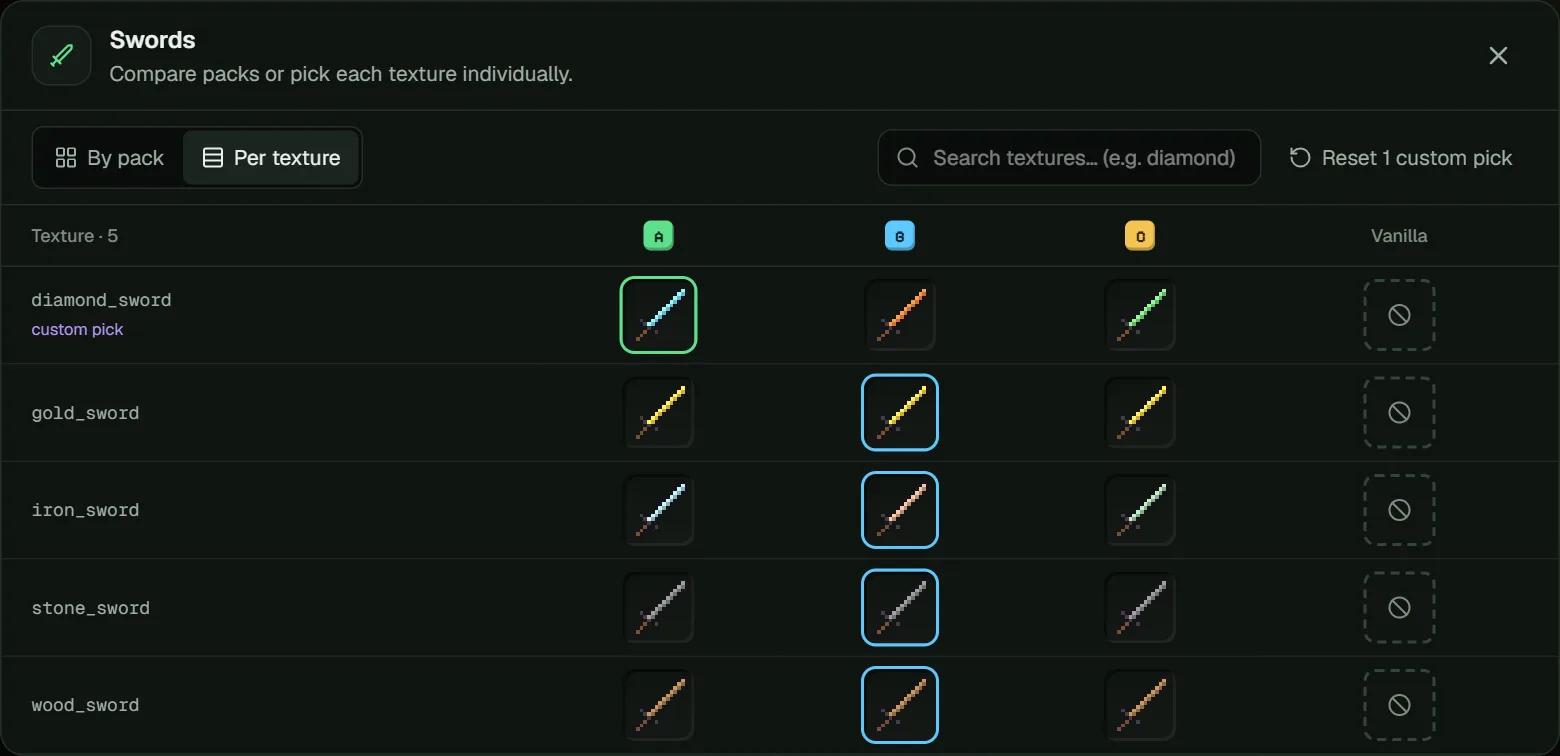
3. Fine-tune single textures (optional)
Want the diamond sword from pack B but every other sword from pack A? Click Pick per texture under a category and switch to the Per texture view. Every texture gets its own row, and you can pick a pack for each one. This also works for sounds, with a play button so you can listen before choosing.
4. Mix HUD parts (optional)
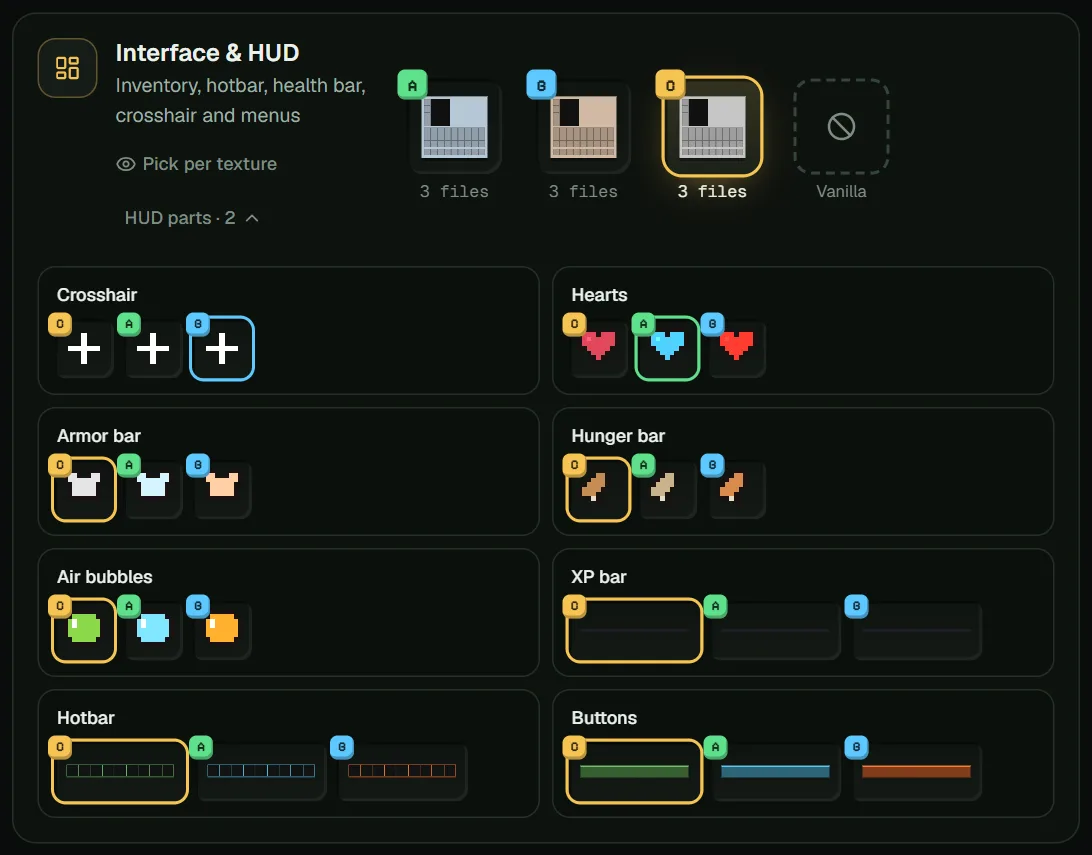
Under Interface & HUD, open HUD parts to take the crosshair, hearts, hunger bar, armor bar, XP bar, hotbar and buttons from different packs. PackMixer cuts the right areas out of each pack's interface files and stitches them together.
5. Choose the output settings
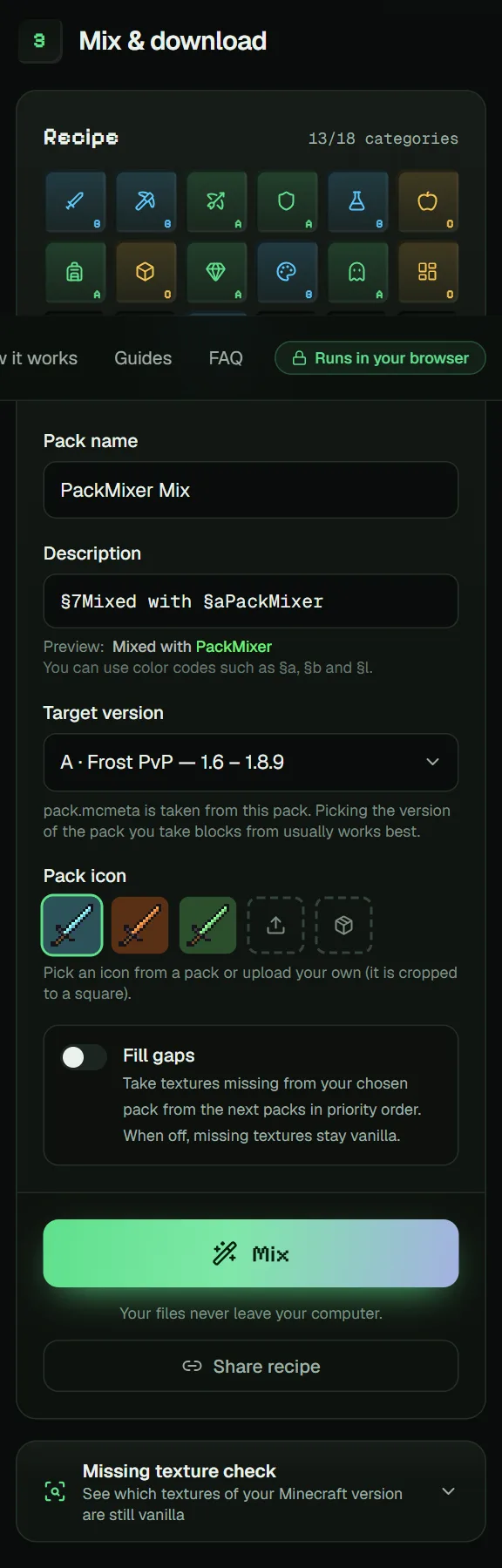
- Pack name and description – color codes like
§aand§lwork. - Target version – pick the Minecraft version you play. Packs made for other versions are converted where possible. See using 1.8.9 packs on newer versions.
- Pack icon – reuse an icon from one of the packs or upload your own.
- Fill gaps – if the pack you picked is missing some textures, take them from the other packs in priority order. Use the #1, #2 arrows on the pack cards to change the order.
6. Mix and download
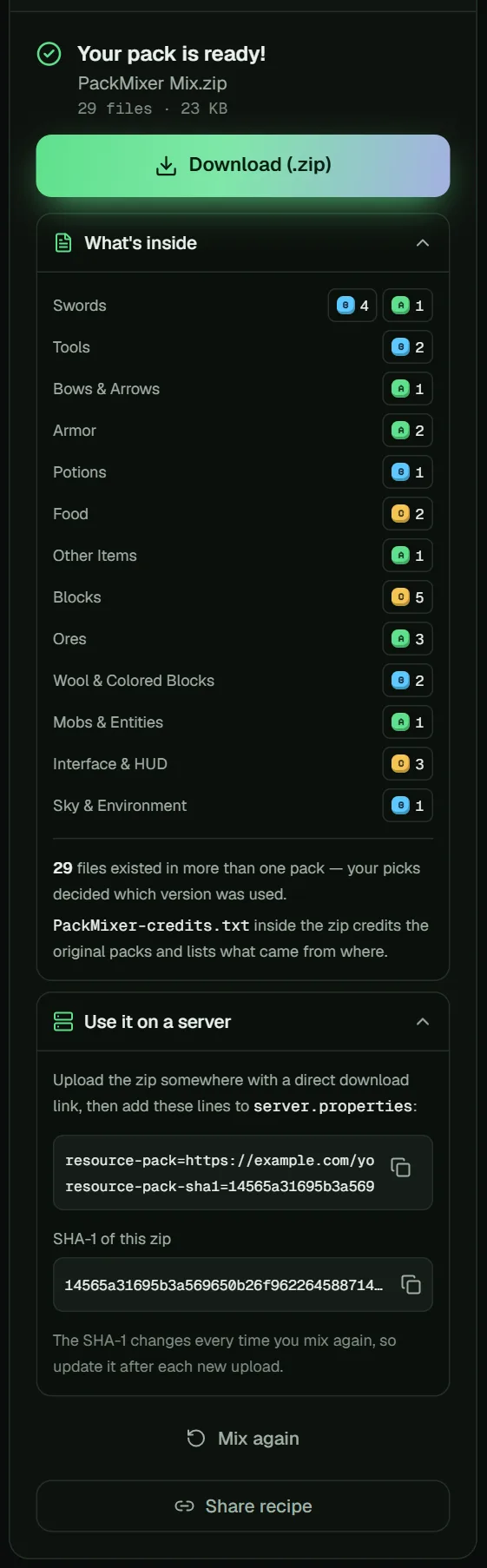
Press Mix. Your new pack downloads as a .zip. Open What's inside to see exactly which pack each part came from. Then install it like any other resource pack.
Tips for the best result
- Packs made for the same Minecraft version mix most cleanly.
- Connected glass and other connected textures need OptiFine (or a compatible mod).
- Use Share recipe to send your picks to a friend. When they add packs with the same names, your choices are applied automatically.
- Your packs and picks are saved in your browser, so you can close the tab and continue later.
PackMixer-credits.txt file listing them. Keep mixes for personal use unless the creators allow sharing.